
Tips for printing LFH pages
Can I print or save the learning tasks?
Yes, easily. Instructions below are for PC’s.
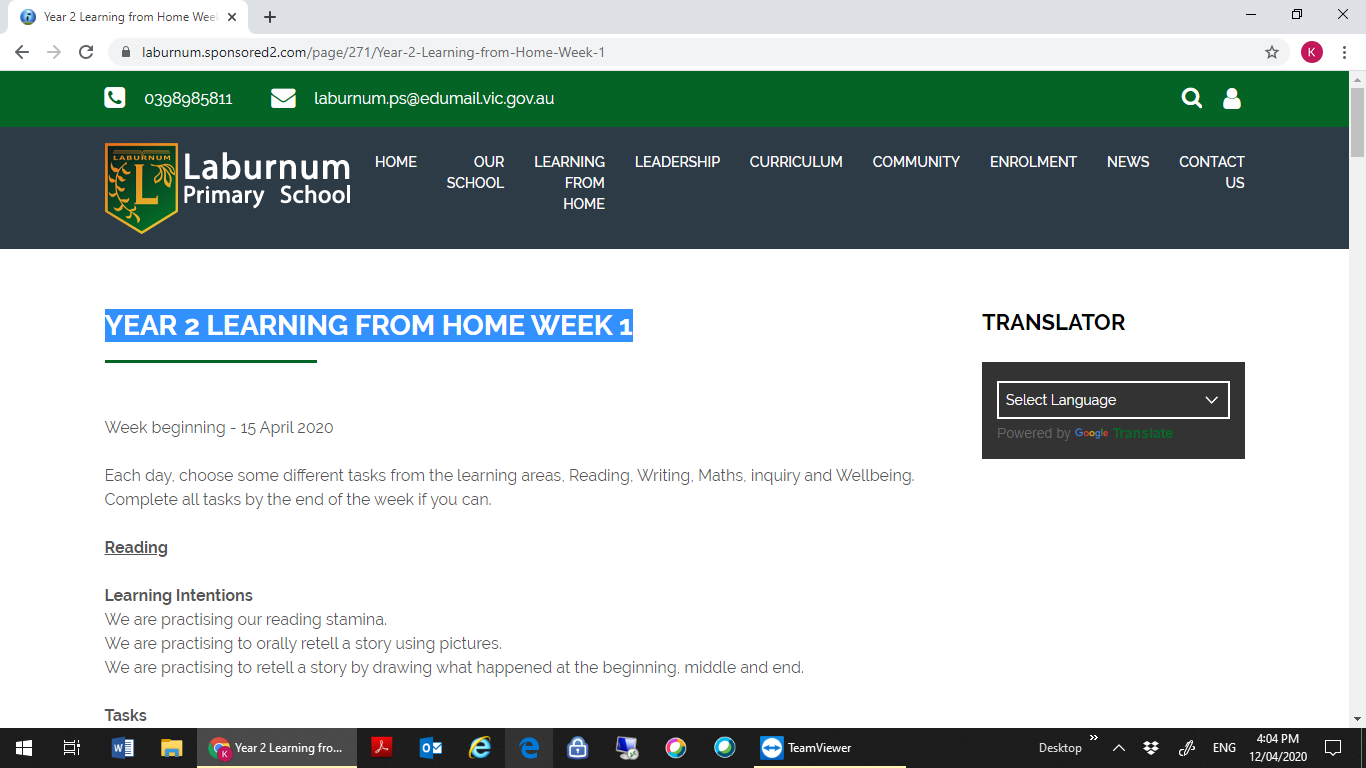
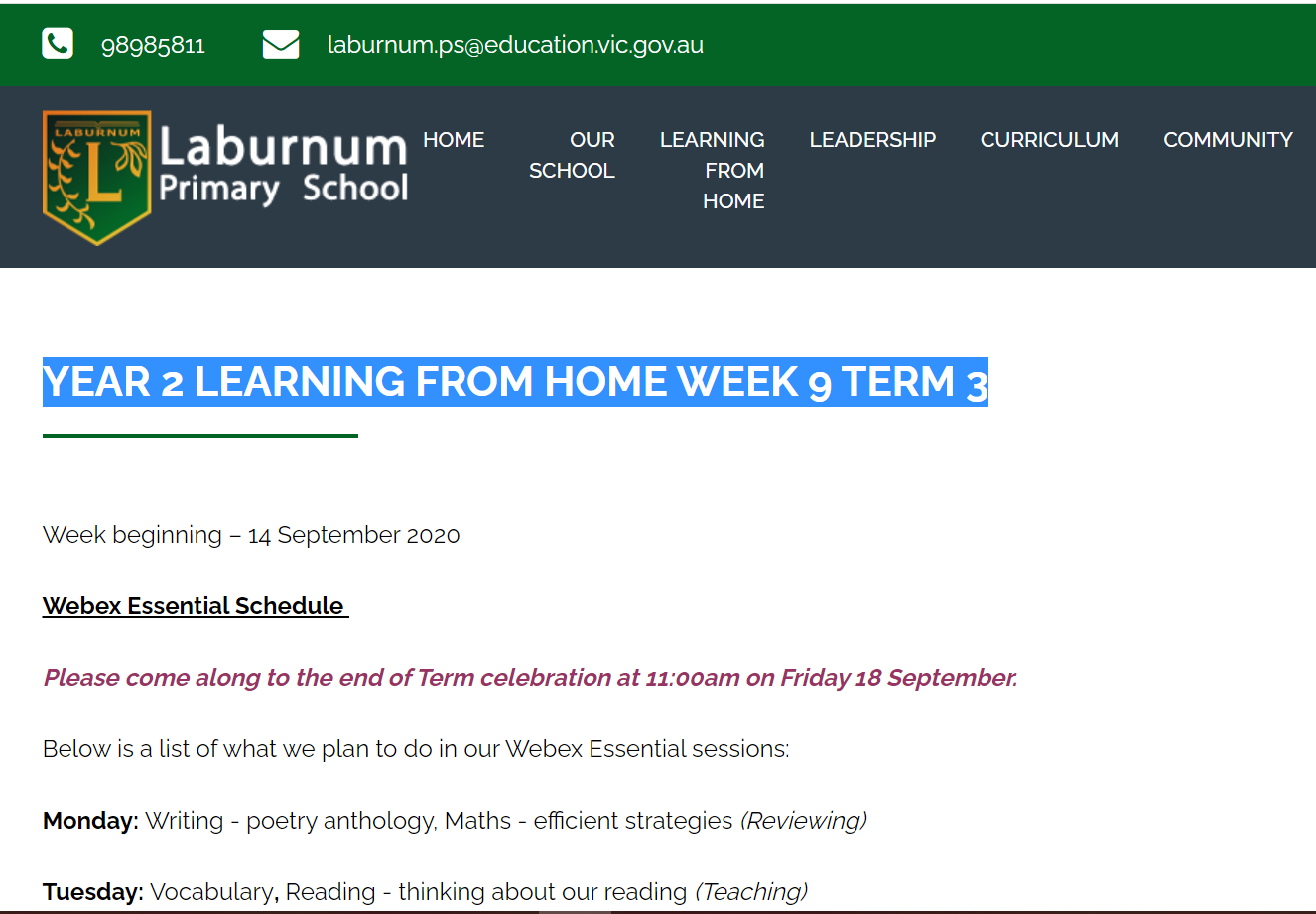
- Log into LFH and go to the page you want. Highlight and copy the page name.
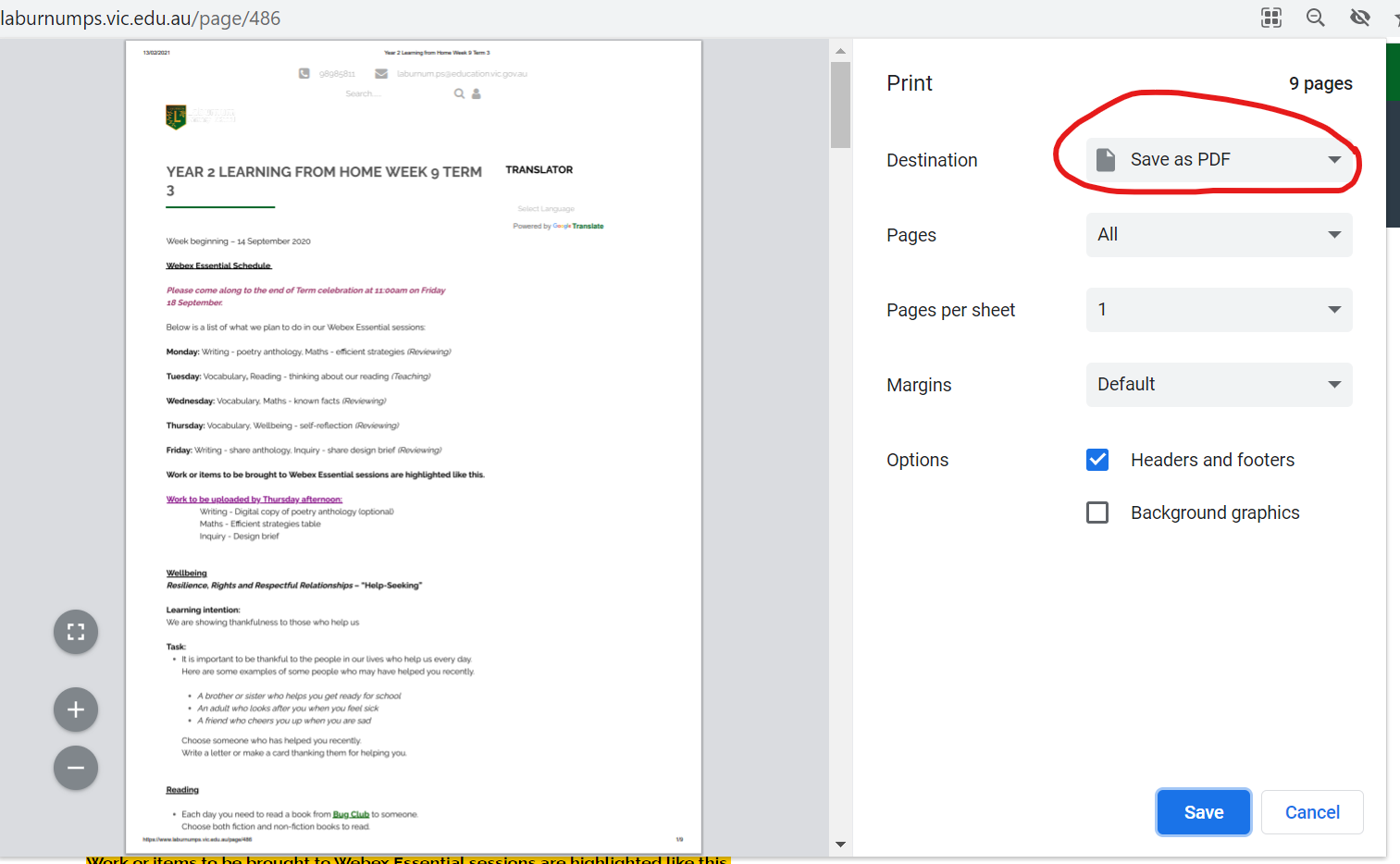
- Put your cursor anywhere on the page and press ‘Control P’ to print. Make sure you select ‘Save as PDF’ when the print window opens.
Then click on the Save button at the bottom.
- Paste the name of the page (the one you highlighted) into any folder or location you want and press Save.
- You should now have a pdf of the entire page (not just part of the screen) and your child can use the pdf instructions offline, or print to a paper copy.
Depending on your computer, you may also like to select all the text and images you are copying prior to Step 2. This will provide a slightly different pdf. This works better for some PCs, but not others.
Additionally, one of our parents has suggested this tool (thanks J!):
© Copyright Laburnum Primary School